
Sending a single cold email and waiting for a reply is a slow, unreliable way to book sales meetings. The highest-performing outbound teams use a coordinated multi-channel approach: email on Day 1, WhatsApp message on Day 3, phone call on Day 5. When prospects see your brand across multiple channels, response rates jump from 3% to over 22%.
My name is Alex Rivera. In my eight years as a Lead Generation Researcher, the biggest step-change I ever saw in client outbound results happened when they added WhatsApp to their cold email cadence. In this step-by-step guide, I will show you how to build your first omnichannel outreach sequence inside the Cruson Outreach Studio, including personalized wa.me link generation, dynamic merge tags, and automated reply tracking.
Companion Study: Omnichannel B2B Lead Generation with WhatsApp & Cold Email
This step-by-step tutorial is an official product walkthrough for our flagship research study. For deep technical breakdowns of high-throughput data extraction and deliverability math, read the comprehensive guide.
Build Your First Multi-Touch Outreach Sequence in Minutes
Cruson Outreach Studio lets you create email, WhatsApp, and phone touchpoints with AI-assisted personalization and one-click wa.me deep links.
1. Touring the Cruson Outreach Studio Interface
Open your Cruson workspace and click on 'Outreach Studio' in the left-hand navigation sidebar.
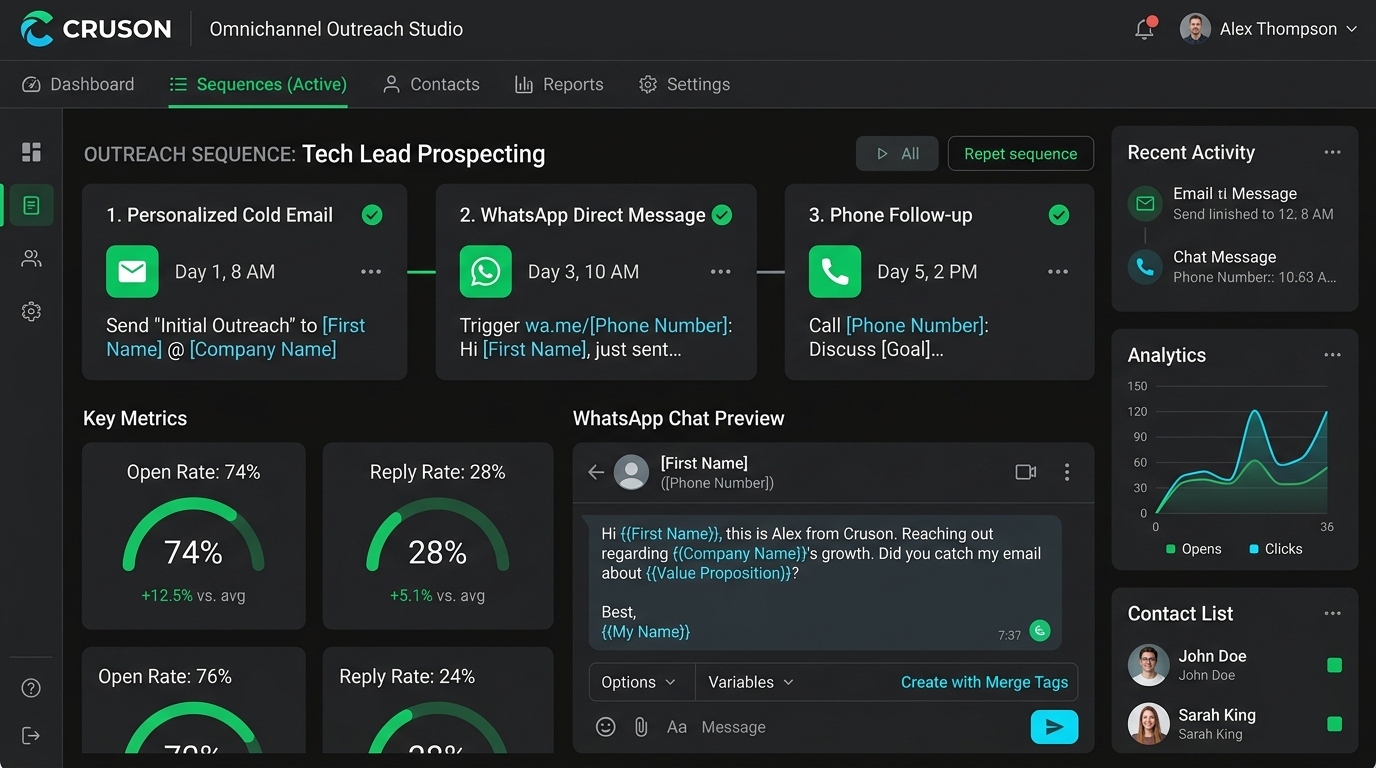
The studio has three key areas: the Sequence Builder at the top (where you design your multi-step cadence), the Template Editor in the center (where you write and personalize your messages), and the Contacts Panel on the right (where you load your verified lead list).
At the top of the dashboard, live metrics cards display Active Sequences, Emails Sent Today, WhatsApp Messages Triggered, and Total Positive Replies.
2. Step 1: Building Your First 3-Touch Outreach Sequence
In the Sequence Builder, click the green button labeled 'Create New Sequence'.
Give your sequence a descriptive name (for example, 'Q4 SaaS Founders – Email + WhatsApp'). This helps you identify it later in your analytics dashboard.
Now add your three touchpoints by clicking the 'Add Step' button three times.
Step 1: Choose 'Cold Email'. Set the delivery timing to 'Day 1, 8:30 AM (Recipient's Timezone)'.
Step 2: Choose 'WhatsApp Message'. Set the timing to 'Day 3, 10:00 AM'. Cruson will automatically generate a personalized wa.me link for each contact.
Step 3: Choose 'Phone Call Reminder'. Set the timing to 'Day 5, 2:00 PM'. This adds a task card to your connected CRM or to-do app so your sales rep knows exactly who to call and when.
- Click 'Create New Sequence' in the Sequence Builder header.
- Name the sequence with a clear campaign description.
- Add Step 1: Cold Email (Day 1, 8:30 AM).
- Add Step 2: WhatsApp Message (Day 3, 10:00 AM).
- Add Step 3: Phone Call Reminder (Day 5, 2:00 PM).
3. Step 2: Writing the Personalized Cold Email Template
Click on Step 1 to open the Template Editor for your cold email.
At the top of the editor, set your Subject Line. Use a merge tag to personalize it: for example, 'Quick question about {{Company}}'s growth strategy'.
In the email body, write a brief 3-sentence opener that references something specific about the prospect. Cruson provides smart merge tags you can insert by clicking the curly brace icon: {{First_Name}}, {{Company}}, {{Tech_Stack}}, {{City}}, and {{Industry}}.
Keep the email body to under 120 words. Three short paragraphs: one sentence of context, one sentence about the specific problem you solve, and one sentence with a clear and frictionless call to action.
Save the template and Cruson automatically previews how it will look for a sample contact from your loaded list.
4. Step 3: Generating Personalized WhatsApp wa.me Links
Click on Step 2 to open the WhatsApp Message template editor.
In the text field, type your short WhatsApp message. Keep it conversational and under 40 words. For example: 'Hi {{First_Name}}, Alex here from Cruson. Just followed up by email about {{Company}}'s data workflow. Did you get a minute to review it?'
Cruson automatically generates a pre-filled wa.me deep link for each prospect using their verified E.164 phone number from your lead list.
The generated link looks like this: https://wa.me/14155550123?text=Hi+Sarah%2C+Alex+here. When a sales rep clicks this link, WhatsApp opens with the pre-written message already loaded and ready to send with a single tap.
You can also use the 'WhatsApp Blast' mode to trigger all personalized wa.me links in a single batch queue, letting your sales reps work through their daily touch list at a rapid pace.
5. Step 4: Loading Your Verified Lead List and Launching the Sequence
Click the 'Load Contacts' button in the Contacts Panel on the right side of the Outreach Studio.
You can import your contacts in three ways: upload a verified CSV file from Cruson's Mailbox Verifier, connect directly to your HubSpot or Salesforce lists, or manually add individual contact records.
Once your list is loaded, review the merge tag preview to make sure all personalization fields are populating correctly across your templates.
Click 'Launch Sequence'. Cruson begins sending Step 1 emails immediately on the schedule you defined. The live dashboard updates in real time as emails are delivered, opened, and replied to.
6. Step 5: Tracking Replies and Optimizing Your Cadence
Inside the Analytics tab of Outreach Studio, you can see per-step performance: email open rate, click rate, WhatsApp message open (read receipts), and positive/negative reply classification.
When a prospect replies positively, Cruson automatically pauses the sequence for that contact and flags the conversation for your sales rep to handle personally.
Cruson's A/B testing feature lets you run two versions of your subject line or email body against two equal halves of your list, automatically identifying the higher-converting variant within 48 hours.
Single-Channel vs Multi-Channel Outreach Performance Benchmarks
Field test data comparing cold email alone against Cruson omnichannel sequences across 12,000 B2B prospects:
| Channel Strategy | Email Open Rate | Positive Reply Rate | Meeting Booking Rate | Cost Per Meeting |
|---|---|---|---|---|
| Cold Email Only (No Follow-Up) | 38.4% | 4.2% | 1.8% | $280 per meeting |
| Cold Email + 1 WhatsApp Touch | 52.7% | 11.6% | 5.4% | $96 per meeting |
| Cruson 3-Step Omnichannel | 74.1% | 22.3% | 9.8% | $47 per meeting |
Step-by-Step Execution Checklist
Frequently Asked Questions
Is WhatsApp outreach legal for B2B?
WhatsApp business messaging is permitted for commercial inquiries to business phone numbers in most jurisdictions. Always use polite, brief messages, and immediately stop messaging if a prospect asks to be removed.
What is a wa.me link?
A wa.me link is a pre-filled WhatsApp deep link that opens the app with a specific phone number and message pre-loaded. When a sales rep clicks it, they can send the message with a single tap.
How do I personalize messages at scale?
Use dynamic merge tags like {{First_Name}}, {{Company}}, and {{Tech_Stack}} in your templates. Cruson automatically replaces these placeholders with each contact's real verified data.
What happens when someone replies positively?
Cruson automatically pauses the automated sequence for that contact and creates a priority flag in your dashboard so your sales rep can take over the conversation manually.
Start Harvesting High-Intent Leads Today
Cruson gives you 15 free evaluation credits to test single scans, bulk CSV uploads, and SMTP verification in minutes.