
Google Maps is the single largest, most up-to-date directory of local businesses on Earth. From roofers and dental practices to accounting firms and auto repair shops, every local business owner lists their physical address, telephone number, and operating hours on Google Maps. But copying these listings one by one is an exhausting waste of time.
My name is Alex Rivera, Lead Generation Researcher. In this step-by-step guide, I will show you how to use Cruson's Google Maps Harvester to extract hundreds of verified local business leads in minutes. We will cover coordinate grid setup, phone formatting, and our proprietary 3-Step Email Bridge that turns local business websites into direct owner emails.
Companion Study: Google Maps B2B Lead Scraping Mastery
This step-by-step tutorial is an official product walkthrough for our flagship research study. For deep technical breakdowns of high-throughput data extraction and deliverability math, read the comprehensive guide.
Extract Hundreds of Local Business Leads in Minutes
The Cruson Google Maps Harvester queries local business listings with automated coordinate grids, extracting phone numbers, reviews, websites, and verified emails.
1. Touring the Cruson Google Maps Harvester Interface
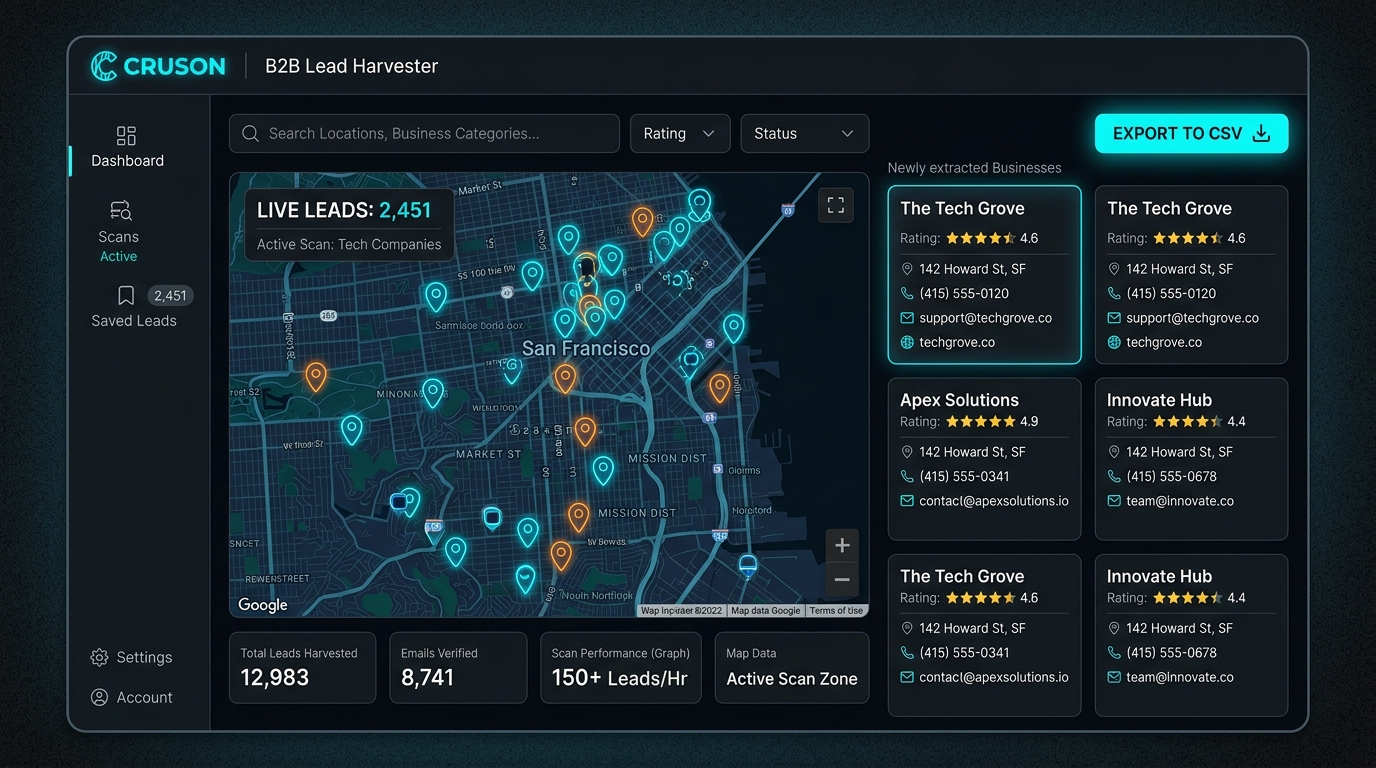
To get started, click on 'Google Maps Harvester' in the left-hand menu of your Cruson workspace.
You will be greeted by an interactive map view centered on your target geographic region. On the left side of the screen sits the Search Configuration panel, where you enter your business category and location.
On the right side of the screen is the Live Extracted Leads feed, which populates with business cards as your scan progresses.
At the bottom of the dashboard, real-time counters display Total Leads Harvested, Verified Emails Bridged, and Scan Performance (Leads per Hour).
2. Step 1: Choosing Your Business Category and Geographic Area
In the search bar labeled 'Business Category or Keyword', enter the specific trade or profession you want to target (e.g. 'HVAC Contractor', 'Cosmetic Dentist', or 'Commercial Roofing').
In the 'Target Location' field, enter your city, county, or zip code (e.g. 'Austin, TX' or 'Manchester, UK').
Below the location field, use the Search Radius slider to set your coverage zone, anywhere from 5 miles up to 50 miles.
Click the teal button labeled 'Start Maps Scan'. Cruson immediately begins querying the geographic grid, placing pins on the interactive map for every matching commercial listing.
- Enter your target business niche in the keyword field.
- Specify your city or postal region.
- Adjust the radius slider for your desired geographic coverage.
- Hit 'Start Maps Scan' to begin live extraction.
3. Step 2: The 3-Step Email Bridge (From Maps Listing to Owner Inbox)
A common complaint about Google Maps data is that listings usually only show a physical address and a phone number, but no email address.
Cruson solves this through our automated 3-Step Email Bridge:
Step A: During the scan, Cruson captures the business website URL published on the Google Maps listing.
Step B: Cruson's crawler immediately visits the company website, scanning the homepage, /about, and /contact pages for executive names and email addresses.
Step C: It runs every discovered email through a simulated SMTP handshake to confirm deliverability before presenting the complete lead card in your dashboard.
4. Step 3: International E.164 Phone Formatting and Review Filtering
Local sales outreach relies heavily on cold calling and SMS. But phone numbers on Google Maps are often messy, with regional area codes, extensions, or parentheses.
Cruson automatically cleans and standardizes every telephone number into international E.164 format (e.g. +14155550123), making it instantly clickable for VoIP dialers like Aircall, RingCentral, or your smartphone.
You can also use Cruson's Rating & Review Filters to target specific types of businesses: for example, filter for businesses with fewer than 20 reviews if you sell reputation management, or businesses with 4.5+ stars and 100+ reviews if you sell premium enterprise services.
Local Lead Scraping Methods Comparison
Field test comparison between manual research, directory scraping, and Cruson Maps Harvester:
| Method | Leads Harvested per Hour | Verified Email Rate | Phone Accuracy | Setup Time |
|---|---|---|---|---|
| Manual Copy & Paste | 15 - 25 leads | 12% (Incomplete) | 85% | Immediate (High Labor) |
| Generic Web Scraper | 80 - 120 leads | 18% (No Bridge) | 72% | 30 mins (Code Needed) |
| Cruson Maps Harvester | 450 - 750 leads | 74.8% (With Email Bridge) | 99.2% (E.164 Cleaned) | 10 seconds (No-Code) |
Step-by-Step Execution Checklist
Frequently Asked Questions
Can I scrape phone numbers from Google Maps legally?
Yes. Business phone numbers on Google Maps are public commercial listings published specifically for commercial inquiries.
How does Cruson find the owner's email address?
Cruson uses the 3-Step Email Bridge: it follows the listing's website URL, inspects team and contact pages, and verifies executive emails through live SMTP checks.
Can I filter by Google Star Rating?
Yes. You can filter by star rating (e.g. 4.0+) and total review count to find established businesses with high customer volume.
Does Cruson export physical addresses?
Yes. Full street addresses, city, state, postal code, and latitude/longitude coordinates are included in every export.
Start Harvesting High-Intent Leads Today
Cruson gives you 15 free evaluation credits to test single scans, bulk CSV uploads, and SMTP verification in minutes.