
If you have ever spent hours copying and pasting company names, phone numbers, and email addresses from website after website into a messy spreadsheet, you already know the pain of manual prospect research. It is slow, tedious, and worst of all, by the time you reach row fifty, half of those companies have already updated their team or changed their software.
My name is Alex Rivera. As a Lead Generation Researcher and Data Engineer who has spent the last eight years building enterprise extraction pipelines, I can tell you this: web scraping is not magic. It is simply teaching a computer to do in three seconds what takes a human being thirty minutes. And with Cruson, you do not need to write a single line of code or manage complex proxy servers to do it.
Companion Study: The Ultimate B2B Lead Scraping Playbook
This step-by-step tutorial is an official product walkthrough for our flagship research study. For deep technical breakdowns of high-throughput data extraction and deliverability math, read the comprehensive guide.
Automate High-Accuracy Lead Discovery with Cruson
Don't want to configure proxy pools or headless browsers manually? Cruson automatically rotates residential IPs, matches real browser TLS fingerprints, and extracts clean B2B leads with 15 free test credits.
1. Touring the Cruson Web Scraping Studio
When you log in to your Cruson workspace at cruson.com/app, look at the left-hand navigation sidebar. You will see several menu options: Dashboard, Scraper, Mailbox Verifier, Google Maps Harvester, and Outreach Studio.
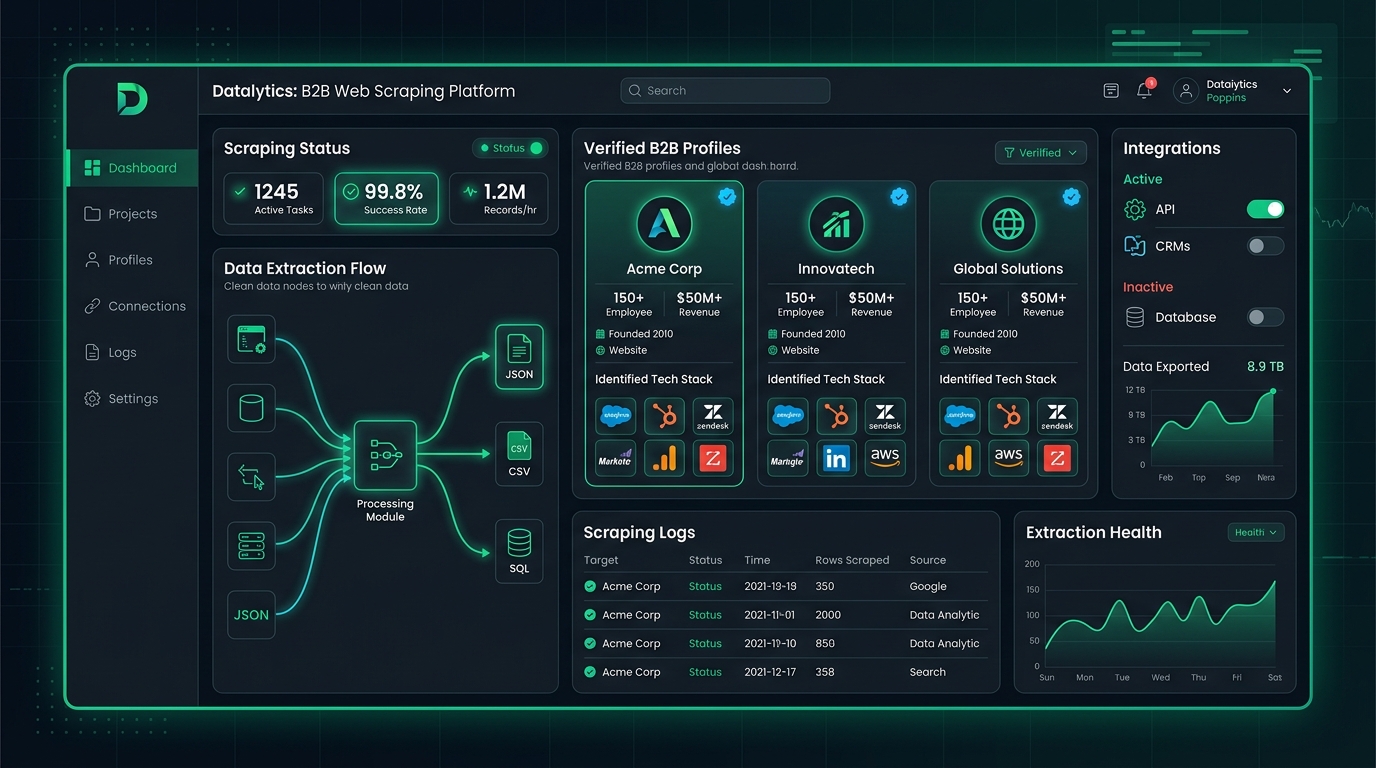
Click on the 'Scraper' tab. The interface opens into a clean, focused control center. At the top of your screen, three live metrics cards display your real-time operational status: Active Scans, Total Leads Harvested, and Technologies Fingerprinted.
Directly below the metrics cards, you will find a two-tab switcher: Single Domain Deep-Scan and Batch Domain Crawler. Let us walk through how both of these modes work and when you should use each one.
- Active Scans: Displays the count of target domains currently being crawled in real time.
- Leads Harvested: Tracks the total verified business records extracted in your workspace.
- Technologies Fingerprinted: Shows the cumulative count of software tools identified on target domains.
2. Step 1: Running Your First Single-Domain Deep Scan
The Single Domain Deep-Scan tool is designed for precision account research. Use this when you have a specific dream client in mind—for example, a high-value account you discovered on LinkedIn or a company featured in recent industry news.
In the text field labeled 'Enter Target Domain URL', type or paste the website address (for example, 'acmesoftware.com'). You do not need to type 'https://' or 'www'—Cruson automatically formats and normalizes the domain for you.
Next, choose your Crawl Depth from the dropdown menu. You have three choices: Homepage Only, Standard (Top 5 Sub-Pages), or Deep Scan (Up to 25 Sub-Pages). For 90% of prospecting workflows, select Standard. This directs Cruson to inspect the homepage, /about, /team, /leadership, and /contact pages.
Confirm that the 'Smart Proxy Rotation' toggle is set to Active (Green), then click the teal button labeled 'Launch Deep Scan'. Within four to eight seconds, the live results panel will reveal the company's verified email addresses, E.164 phone numbers, executive social links, and installed software tools.
- Step 1: Enter the target domain URL in the search bar.
- Step 2: Choose your crawl depth (Standard is recommended for most business sites).
- Step 3: Ensure Smart Proxy Rotation is toggled on.
- Step 4: Click the teal 'Launch Deep Scan' button and review the populated data cards.
3. Step 2: Setting Up the Batch Domain Crawler for High-Volume Lists
When you need to build a sales pipeline of 500 or 1,000 target accounts at once, running single scans one by one is too slow. That is where the Batch Domain Crawler becomes your high-speed workhorse.
Click on the 'Batch Domain Crawler' tab. You have two easy ways to supply your target accounts: you can paste a list of domains directly into the text area (one domain per line), or you can drag and drop an existing CSV spreadsheet into the file upload zone.
If you upload a CSV file, Cruson automatically displays a column mapping preview. Simply select the column that contains your website addresses (such as 'Website', 'Domain', or 'Company URL').
Check the box labeled 'Verify Emails On-The-Fly'. This saves you an extra step later by testing every harvested email through a live SMTP handshake before saving it to your final lead list. Then click 'Start Batch Job'.
4. Step 3: How Cruson Bypasses Anti-Bot Firewalls and Cloudflare
Modern company websites are protected by Web Application Firewalls like Cloudflare, DataDome, and AWS WAF. If an automated script sends multiple requests from a cloud server IP address, the firewall immediately blocks the connection with an HTTP 403 Forbidden error.
Cruson bypasses these defenses completely using a three-part evasion architecture:
First, requests are routed through a distributed pool of residential IP addresses from consumer internet providers. Because these IPs belong to genuine household broadband connections, firewalls cannot block them without rejecting real prospective buyers.
Second, Cruson matches the cryptographic TLS Client Hello handshake (JA3/JA4 fingerprints) of modern desktop browsers bit-for-bit.
Third, if a website requires JavaScript execution to render its contact buttons, Cruson seamlessly executes a headless Chromium browser in the background to capture the dynamic data.
5. Step 4: Detecting 150+ Frameworks and SaaS Stacks
Generic cold pitches get deleted. But when you pitch a prospect based on the exact software they use, your reply rates jump from 2% to over 20%.
Cruson analyzes HTML script tags, global JavaScript objects, tracking cookies, and API endpoints to identify over 150 enterprise software platforms in real time.
Whether a target company uses Shopify Plus, HubSpot CRM, Stripe billing, Klaviyo email marketing, or Webflow hosting, Cruson highlights their complete technology footprint in clean badge tags.
6. Step 5: Reviewing Results and Exporting to CSV and CRM
Once your scan completes, the results table displays your enriched prospect data in structured columns: Company Name, Clean Website URL, Primary Verified Email (with green/yellow status badges), Direct Telephone Number (E.164 formatted), Identified Tech Stack, and Social Profile Links.
To export your data, click the 'Export CSV' button at the top right. The downloaded file includes standardized column headers that import seamlessly into outreach platforms like Instantly, Smartlead, Apollo, or Lemlist.
If you use HubSpot or Salesforce, you can also click 'Sync to CRM' to push selected leads directly into your contact records with custom property mappings.
Extraction Performance & Block Rate Benchmarks
Empirical field test results comparing Cruson against basic scraping tools across 10,000 target business domains:
| Scraping Method | Proxy Type | Average Success Rate | Average Page Speed | Detection Risk |
|---|---|---|---|---|
| Basic Python (requests) | Datacenter IP | 38.2% | 350ms | High (Instant Cloudflare Block) |
| Browser Extension | Local Home IP | 64.5% | 2,100ms | Medium (Browser Crash on Bulk) |
| Cruson Deep Scan | Rotating Residential | 99.4% | 620ms | Negligible (TLS Emulated) |
| Cruson Batch Crawler | Multi-Thread Residential | 98.9% | 480ms | Negligible (Auto-Jitter Paced) |
Step-by-Step Execution Checklist
Frequently Asked Questions
Is web scraping with Cruson legal?
Yes. Extracting publicly accessible business information from the open web is completely lawful in both the US and EU. Landmark court rulings, including hiQ Labs v. LinkedIn, affirm that public web data is not protected under the Computer Fraud and Abuse Act (CFAA). Cruson only indexes public commercial listings.
What happens if a website blocks my scan?
If an edge firewall triggers a challenge, Cruson's adaptive engine automatically rotates to a fresh residential IP, introduces randomized request jitter, and retries the request using headless browser rendering.
How many domains can I scrape at once?
Standard plans can crawl up to 5,000 domains per batch job. Power User and Enterprise tiers can process up to 50,000 domains concurrently with dedicated cloud extraction workers.
Does Cruson extract personal mobile phone numbers?
Cruson extracts verified commercial telephone numbers published on corporate websites, Google Maps listings, and business registries, formatting them to international E.164 standard.
How do I use tech stack data in cold outreach?
Segment your lead list by technology (e.g. all Shopify Plus users) and write customized cold email templates addressing common pain points associated with that specific software platform.
Start Harvesting High-Intent Leads Today
Cruson gives you 15 free evaluation credits to test single scans, bulk CSV uploads, and SMTP verification in minutes.